Google Calendar setup
Prerequisite: Solve must be added as a Trusted App in Google Workspace.
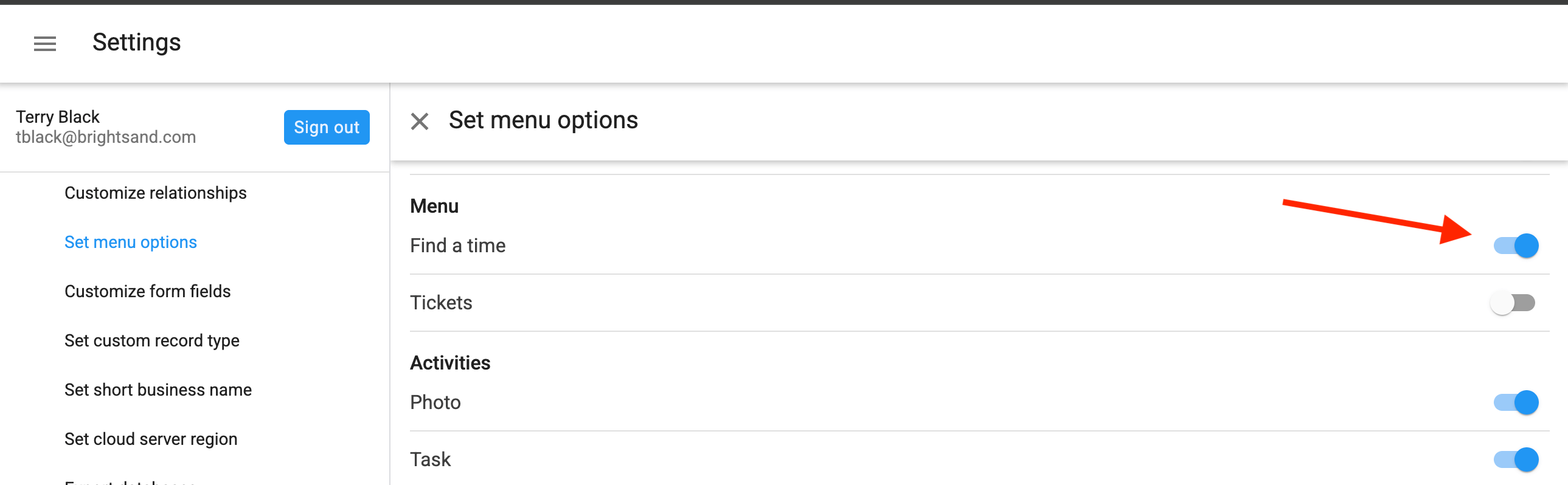
1) A Solve Administrator enables the "Find a time" menu option
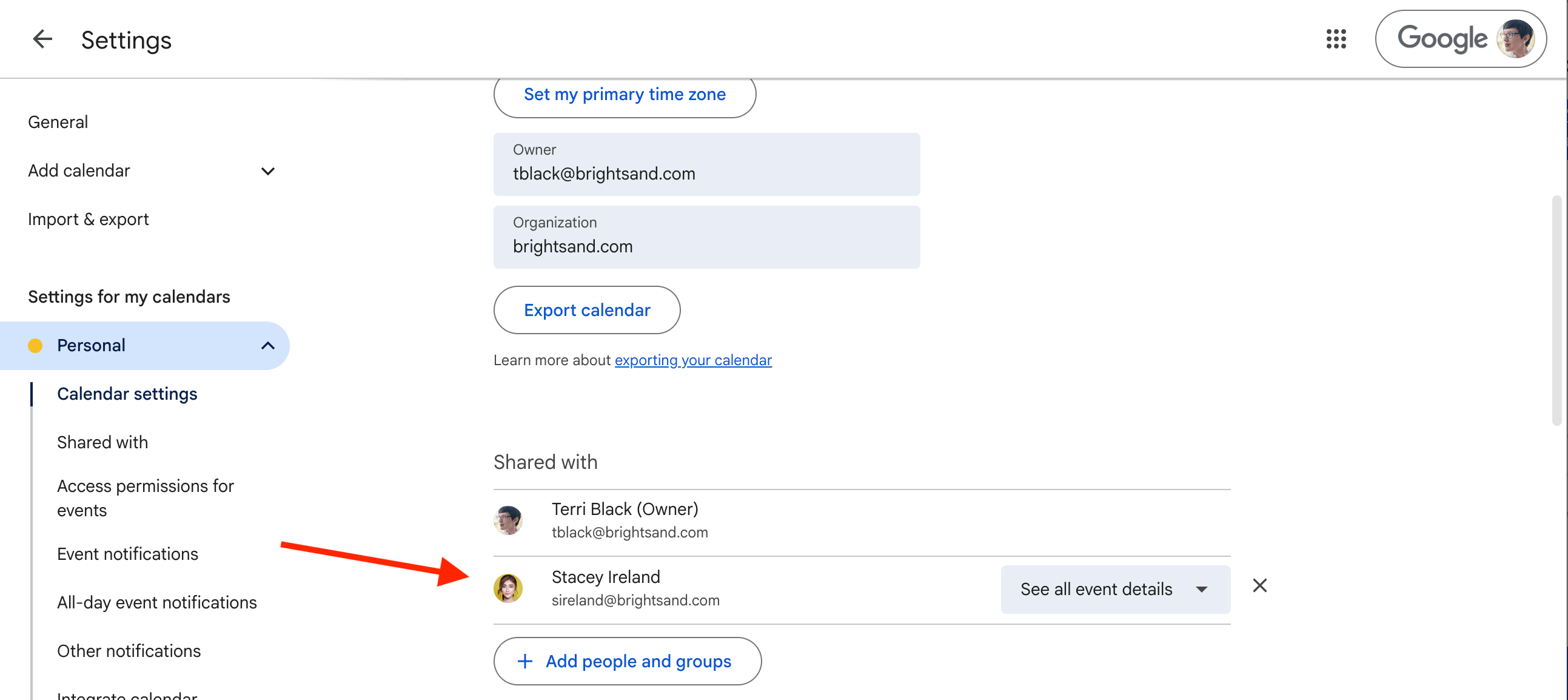
2) Each Google user shares their Google Calendar with other staff
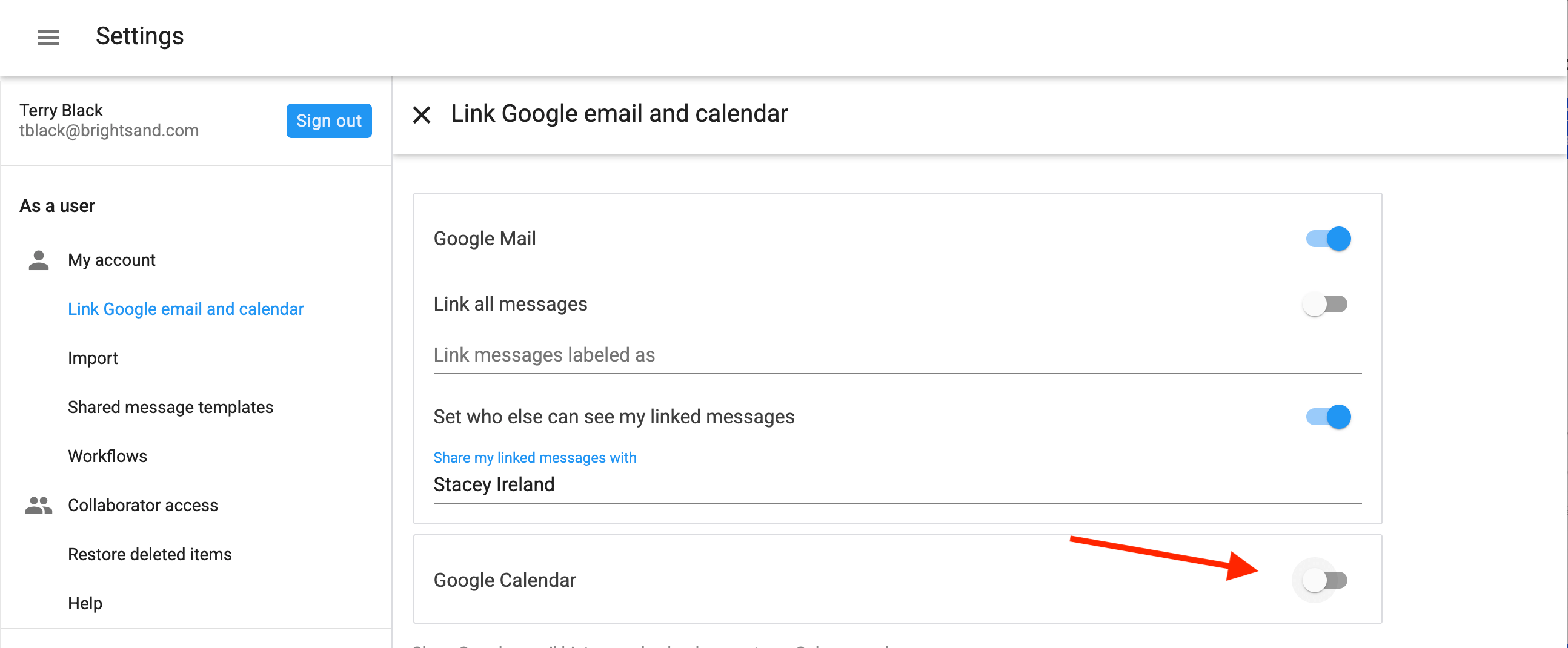
3) Each Solve user enables the Google Calendar linking to their account
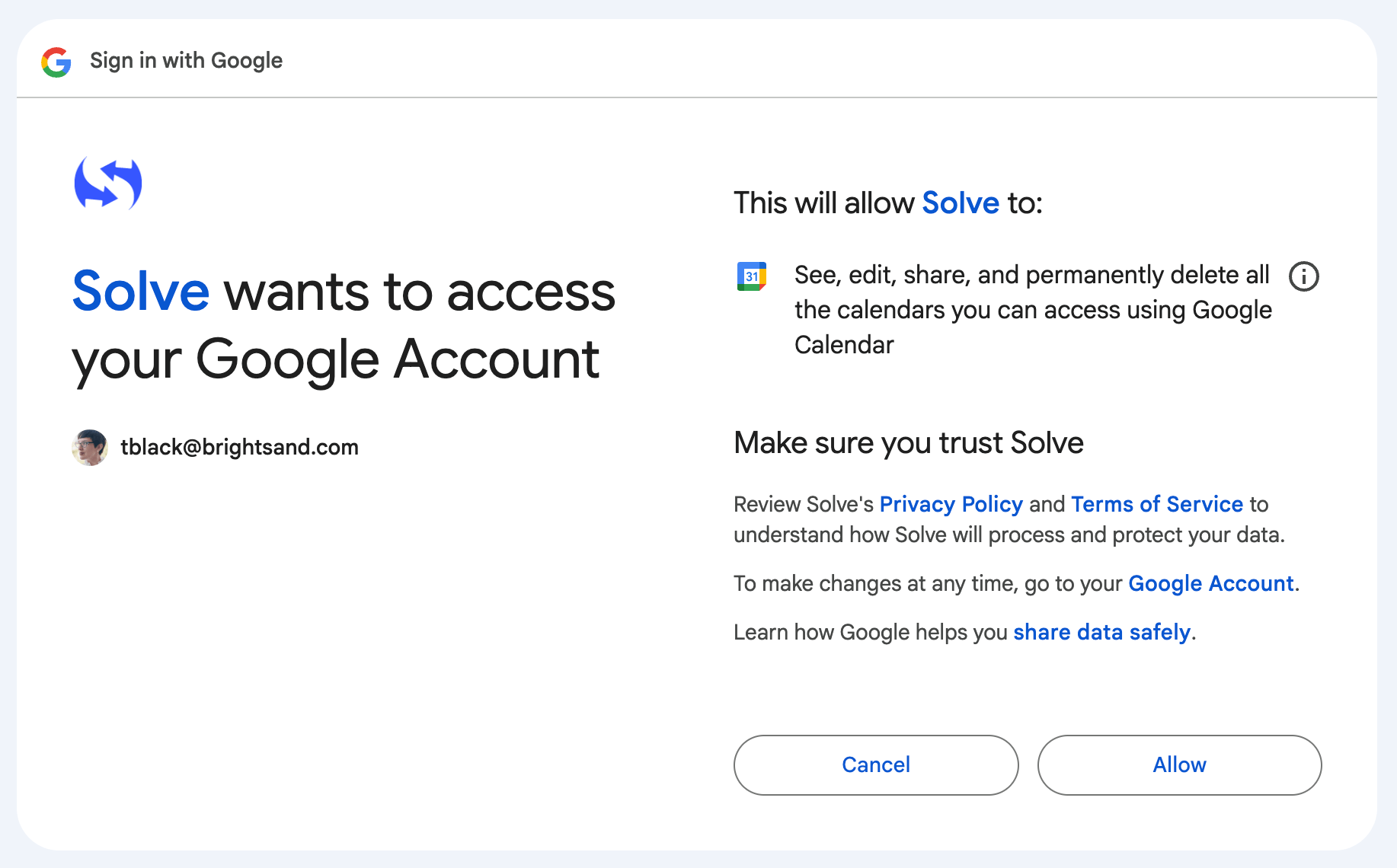
4) Each Solve user selects which Google calendars to link
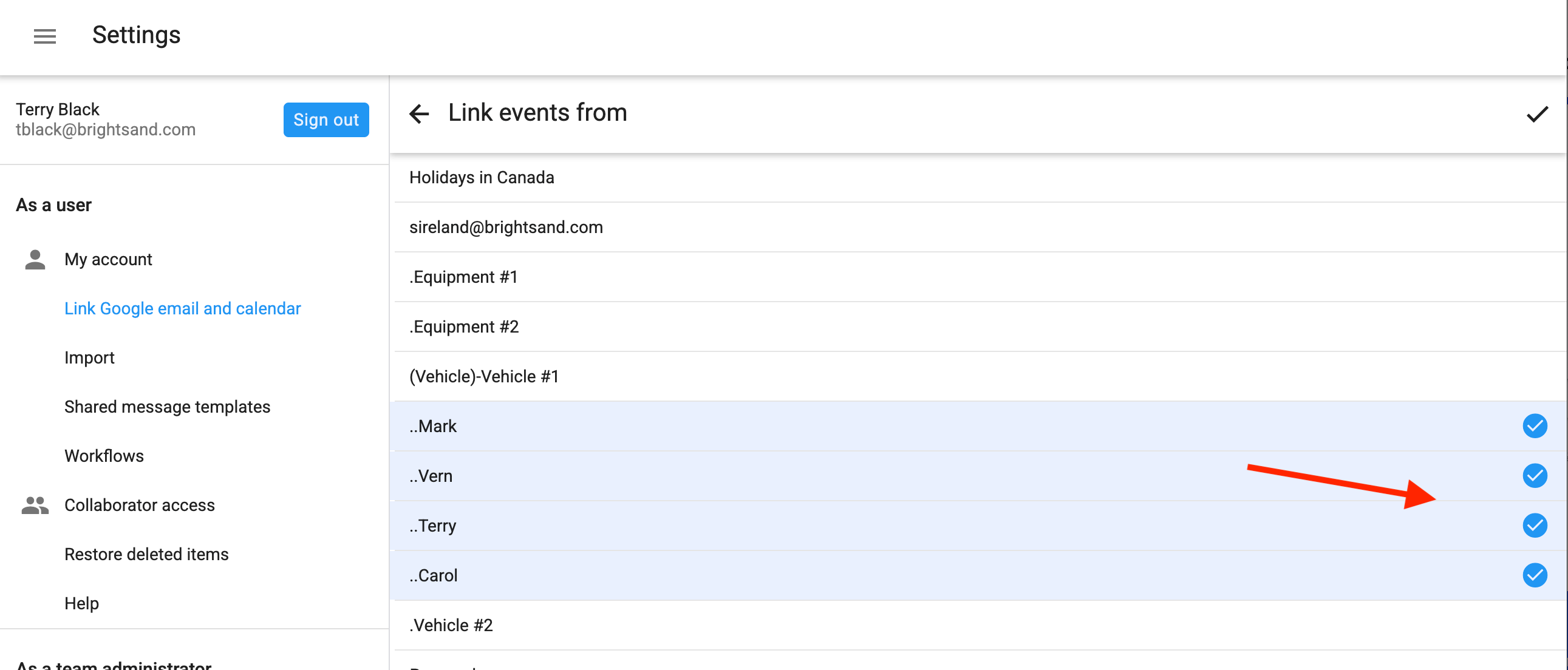
4) Each Solve user sets what is shown on the report
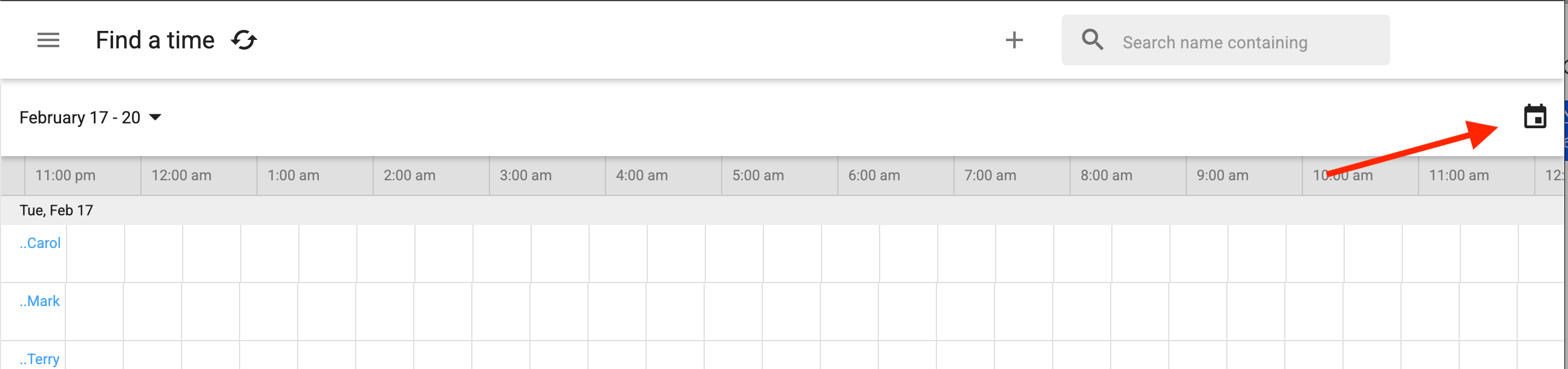
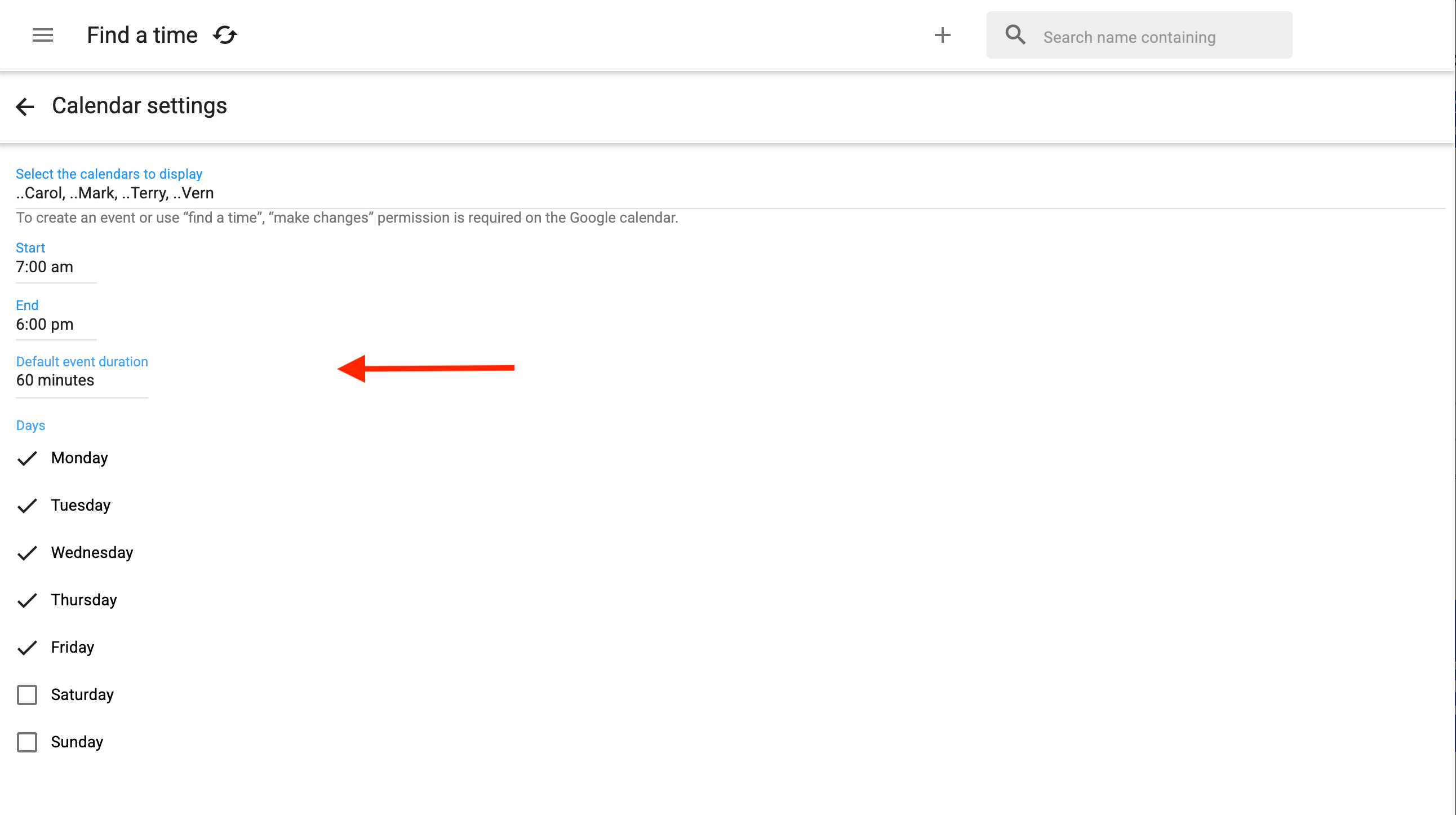
When you link a team member’s personal Google calendar, the calendar name in Solve may show as their email address. To change it, rename the calendar in Google Calendar settings. You can change it back afterward if you want. The important part is making a one-time update so Solve refreshes the name.
Google Calendar best practice
Even if staff share their personal calendars, Google may not send instant notifications for updates, for example when a scheduler adds an event. Solve recommends that Google admins create a dedicated shared calendar for each team member, granting team members See all event details access and schedulers Make changes access. This keeps scheduling centralized and lets each team member choose to receive instant update notifications. Dedicated shared calendars also work well for booking shared resources like equipment, vehicles, and rooms.